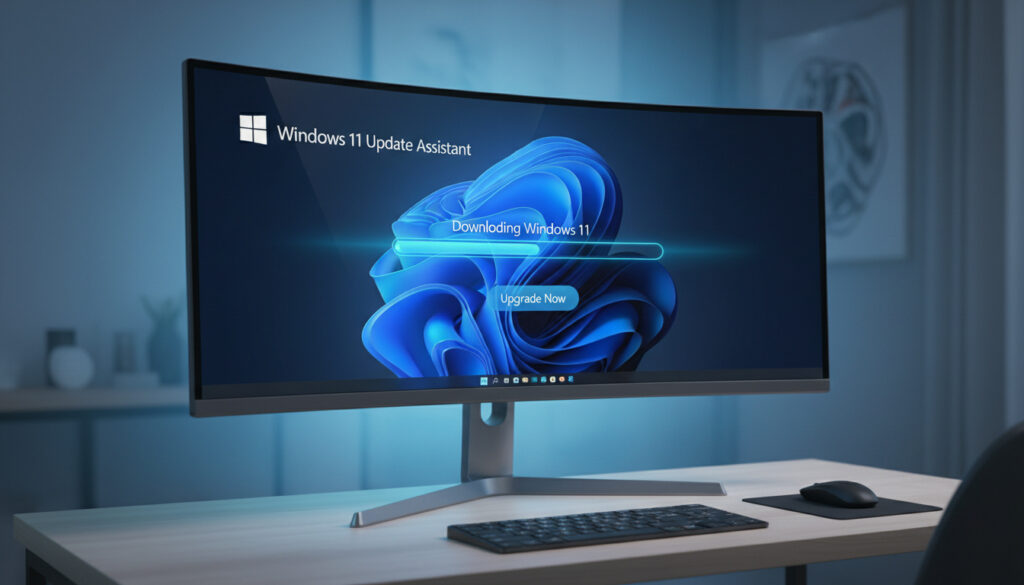
Windows 11 Update Assistant – Download and Upgrade Guide
The Windows 11 Update Assistant serves as Microsoft’s official bridge for users seeking to upgrade compatible computers without waiting for the gradual rollout through Windows Update. This compact executable utility orchestrates in-place upgrades while preserving existing applications, personal files, and system configurations.
Unlike clean installation methods that erase drive contents, the assistant automates compatibility verification against Microsoft’s hardware requirements including TPM 2.0 modules and Secure Boot capabilities. For organizations and individuals managing multiple workstations, the tool offers a direct path to the latest feature updates without creating bootable media.
Understanding its operational parameters, download procedures, and troubleshooting protocols ensures smooth transitions between Windows versions. The following guide examines the utility’s functionality, safety credentials, and comparative advantages against alternative upgrade pathways.
How Do I Download the Windows 11 Update Assistant?
Microsoft distributes the tool exclusively through their official software portal. The executable requires minimal initial storage, yet facilitates complete operating system transitions.
Key Capabilities
- Executes comprehensive hardware validation before download initiation
- Automates multi-phase installation with scheduled restarts
- Compatible with Windows 10 version 2004 and newer releases
- File size remains under 5 MB for the initial launcher
- Preserves activation status and driver configurations
- Offers faster deployment than waiting for Windows Update queues
- Validates Secure Boot and CPU generation requirements
Technical Specifications
| Attribute | Specification |
|---|---|
| Developer | Microsoft Corporation |
| Latest Version | 25H2 (September 30, 2025) |
| File Name | Windows11InstallationAssistant.exe |
| Initial Download Size | 4.0 MB |
| Target Operating Systems | Windows 10 version 2004+, Windows 11 |
| Architecture Support | x64 processors only (excludes ARM) |
| Disk Space Requirement | 9 GB available |
| Hardware Prerequisites | TPM 2.0, Secure Boot, 4 GB RAM |
| Distribution Method | Direct download from Microsoft servers |
How to Use the Windows 11 Update Assistant Step by Step
Operational success depends on proper preparation and allowing sufficient time for the automated sequence to complete without interruption.
Pre-Launch Verification
Before executing the utility, verify system compatibility using Microsoft’s PC Health Check application. Confirm at least 9 GB of storage remains available on the system drive. Close all non-essential applications to prevent interruption during the restart sequence.
Execution Process
Visit the official download repository to retrieve the current version. Right-click the downloaded executable and select “Run as administrator” to elevate permissions. The interface automatically scans hardware compliance, displaying clear notification if the processor, TPM module, or Secure Boot configuration fails validation. Upon passing inspection, accept the license terms and initiate the download phase.
The assistant requires elevated system permissions to modify boot configurations and system files. Failure to run as administrator typically results in permission errors during the installation phase.
Installation and Finalization
The utility downloads the complete Windows 11 image, which may require significant time depending on connection speed. A 26-minute countdown timer often appears before automatic restart initiation. The computer will reboot multiple times during the installation sequence; maintaining power throughout this process remains critical. Post-installation, verify driver compatibility through the device manufacturer portal.
Is the Windows 11 Update Assistant Safe and What Are Its Requirements?
Security and system compatibility represent primary concerns when modifying operating systems. Microsoft’s official tool incorporates specific safeguards, though user diligence remains essential.
Security Credentials
The tool originates exclusively from Microsoft’s official distribution servers, carrying the publisher’s digital signature. Microsoft documentation confirms the utility performs in-place upgrades designed to preserve user data and installed applications. However, hardware failures or power interruptions during installation could compromise data integrity.
While the assistant preserves files during normal operation, creating comprehensive backups before initiating major system upgrades mitigates risks from unexpected hardware failures or power loss during critical system file migration.
Technical Prerequisites
The utility demands Windows 10 version 2004 or newer as the host operating system. Processor compatibility excludes ARM architecture, supporting only x64 instruction sets. Systems must demonstrate TPM 2.0 availability, Secure Boot capability, and minimum 4 GB RAM alongside the 9 GB storage requirement.
Data Handling Protocols
The installation process maintains existing user profiles, application installations, and personalization settings within the Windows.old directory structure. Temporary files generated during upgrade automatically clear following successful migration, though manual cleanup remains possible through Storage settings if residual data persists.
What Is the Windows 11 Update Assistant?
Core Functionality
Officially designated the Windows 11 Installation Assistant, this executable utility serves as an alternative deployment mechanism to Windows Update’s automatic distribution. The software validates hardware eligibility, retrieves the appropriate feature update payload, and orchestrates the migration sequence while maintaining user environments.
Version Evolution
The 25H2 edition, released September 30, 2025, represents the current iteration for upgrading to the Windows 11 2025 Update. Earlier versions supported transitions to 22H2, 23H2, and 24H2 feature releases, with each iteration maintaining similar operational parameters but updated compatibility databases.
Upon completing the download phase, the utility may display a 26-minute countdown before forcing system restart. Users can delay this timer but cannot cancel the restart indefinitely without exiting the application.
Windows 11 Update Assistant vs Other Upgrade Methods
Microsoft provides multiple pathways to Windows 11 deployment, each suited to distinct technical scenarios and user requirements.
| Method | Best For | Preserves Data | Requirements |
|---|---|---|---|
| Installation Assistant | Single PC upgrades | Yes | 9 GB space, internet, compatible hardware |
| Media Creation Tool | Clean installs, multiple PCs | No | USB drive, manual installation |
| Windows Update | Automatic deployment | Yes | Random rollout availability |
The Installation Assistant occupies the middle ground between Windows Update’s passive delivery and the Media Creation Tool’s manual approach. Microsoft recommends attempting Windows Update first, resorting to the Assistant only when automatic updates remain unavailable, and reserving the Media Creation Tool for clean installations or deploying to multiple machines. For more details on this, you can check out the guide on ounces in a cup.
How Has the Windows 11 Update Assistant Evolved?
- : Initial release coinciding with Windows 11 launch, supporting upgrades from Windows 10 to original Windows 11 build.
- : 23H2 support integration, expanding compatibility checking for newer processor generations and updated security requirements.
- : 24H2 feature update support added, with refined disk space management and faster validation algorithms.
- : Version 25H2 publication, maintaining 4.0 MB launcher size while supporting the latest Windows 11 feature set.
What Is Certain vs. Uncertain About the Update Assistant?
| Established Facts | Uncertain or Variable Elements |
|---|---|
| Official Microsoft distribution with valid digital signatures | Specific download duration varies by internet infrastructure |
| Preserves user data and applications during successful upgrades | Individual driver compatibility post-upgrade depends on hardware manufacturer support |
| Requires TPM 2.0, Secure Boot, and x64 architecture | Timeline for Windows Update rollout availability differs by region and device |
| 9 GB storage requirement is mandatory | Success rate for borderline-compatible hardware remains unquantified |
| Automatic restart sequence follows download completion | Duration of installation phase varies by storage medium speed |
Where Does the Update Assistant Fit in Windows Deployment?
Microsoft positions the Installation Assistant between passive Windows Update delivery and the Media Creation Tool’s manual approach. While Windows Update gradually phases availability to manage server load and detect compatibility issues, the assistant provides immediate access for validated hardware. This utility eliminates the USB media creation requirement, offering a streamlined solution for single-device upgrades where users retain their existing software ecosystem.
Enterprise environments and individual users facing stalled Windows Update queues frequently utilize this method to bypass rollout throttling. Those researching Maine Coon Cats for Sale – Prices, Breeders and Scam Guide understand the value of verification when selecting specific characteristics; similarly, verifying system compatibility before launching the Assistant prevents failed installations.
What Do Microsoft and Experts Say?
“Before you install Windows 11, make sure your device meets the minimum system requirements. If it doesn’t, you might not be able to install Windows 11 on your device and might want to consider purchasing a new PC.”
Microsoft Support Documentation
“The Windows 11 Installation Assistant is Microsoft’s recommended method for upgrading compatible Windows 10 computers when the automatic update hasn’t appeared yet.”
“Running the tool as administrator is essential, and ensuring your device is plugged in during the multiple restarts will prevent corruption.”
Key Takeaways on the Windows 11 Update Assistant
The Windows 11 Update Assistant provides a certified pathway for eligible systems to access current feature releases without awaiting automatic distribution. By verifying hardware compatibility upfront and preserving existing software configurations, the utility balances immediacy with stability. Users should verify system requirements through the PC Health Check utility, maintain comprehensive backups, and source the executable exclusively from official Microsoft domains. Those seeking BT Yahoo Email Login – Official Guide and Fixes will find similar attention to authentication standards essential when navigating official digital resources.
Frequently Asked Questions
Does the Windows 11 Update Assistant delete existing files?
The tool performs in-place upgrades designed to preserve applications, personal files, and settings. However, creating backups before any major system modification remains essential.
Why does the Update Assistant report incompatibility on my recent PC?
Verification failures typically indicate disabled TPM 2.0, inactive Secure Boot in BIOS settings, or unsupported processor generations despite recent manufacture dates.
How long does the complete upgrade process require?
Duration varies by internet speed and hardware performance, typically requiring one to several hours including multiple automatic restarts.
Can I upgrade from Windows 10 using this tool?
Yes, the assistant supports upgrades from Windows 10 version 2004 and newer releases to Windows 11 on compatible hardware.
Is the Windows 11 Update Assistant free to download?
Microsoft provides the utility without charge through their official software download portal.
What should I do if the installation stalls or fails?
Restart the computer, ensure sufficient disk space, install pending Windows updates, temporarily disable antivirus software, and retry running the tool as administrator.
Does this tool work on ARM-based computers?
No, the Installation Assistant supports only x64 architecture systems and will not function on ARM processors.
More related posts
 Sydney Sweeney Silver Dress – Variety Power of Women Details
 Thomas Brodie-Sangster – Wife, Age & Game of Thrones
 Jeffrey Epstein Prince Andrew – Scandal Arrest and Timeline
 Side Effects of Amlodipine – Common Risks and Management Guide
 Knicks vs Lakers Match Player Stats – Box Score, Top Scorers & Recap
 Buy a Gift Voucher – Top Sites, Deals and Step-by-Step Guide
 BAE Share Price Today – Live Price, Dividend & Analyst Forecast